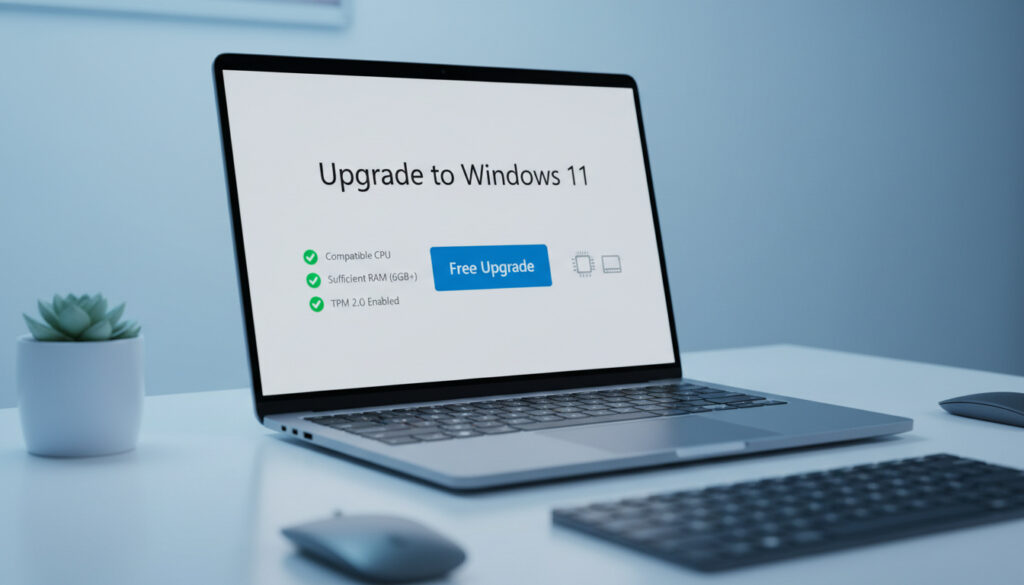
Upgrade to Windows 11 – Free Guide and Requirements
Microsoft’s free upgrade path from Windows 10 to Windows 11 remains open for eligible devices, offering users a transition to modern security features before the October 2025 end-of-life deadline for the older operating system. The update requires specific hardware capabilities including TPM 2.0 and Secure Boot, criteria that have rendered millions of existing machines technically incompatible despite functional performance.
With Windows 10 support termination approaching, understanding eligibility verification and installation procedures has become essential for maintaining system security. While Microsoft continues to offer the update at no cost through official channels, the process involves compatibility checks, preparation protocols, and documented risks that require careful navigation.
This analysis examines verified requirements, legitimate installation methods, and troubleshooting protocols based on Microsoft’s technical documentation and verified community support data. How to Make a QR Code for Free – Step-by-Step Guide
What are the Windows 11 system requirements?
Microsoft maintains strict hardware standards for Windows 11, mandating capabilities that support modern security architectures. The baseline specifications exclude many processors manufactured before 2017, creating a hard compatibility boundary that software workarounds cannot fundamentally resolve.
- The PC Health Check tool provides definitive compatibility verification for processor, TPM, and storage requirements
- Free upgrades remain officially available for qualifying hardware with no announced termination date
- The installation requires minimum 20 GB free space on the system drive during the upgrade process
- Intel 8th generation or AMD Ryzen 2000 series processors serve as the baseline CPU requirement
- TPM 2.0 must be physically present and enabled in UEFI/BIOS firmware settings
- Secure Boot capability must be activated in system firmware prior to installation
| Component | Minimum Requirement | Check Method |
|---|---|---|
| Processor | 1 GHz or faster, 2+ cores, compatible 64-bit (Intel 8th gen+, AMD Ryzen 2000+) | PC Health Check or System Information |
| RAM | 4 GB minimum | System Properties |
| Storage | 64 GB total capacity (20+ GB free required) | File Explorer / Disk Management |
| TPM | Version 2.0 enabled | tpm.msc command or PC Health Check |
| Secure Boot | Enabled in UEFI firmware | System Information (msinfo32) |
| Graphics | DirectX 12 compatible with WDDM 2.0 driver | DirectX Diagnostic Tool (dxdiag) |
| Display | High definition (720p) display, 9 inches or larger | Display Settings |
How do I upgrade to Windows 11?
The upgrade process remains complimentary for devices meeting hardware requirements, available through multiple official distribution channels. Microsoft confirms that legitimate Windows 10 licenses transfer directly to Windows 11 without additional purchase.
Pre-installation preparation
Update Windows 10 fully through Settings > Update & Security > Windows Update before initiating the upgrade. Install all pending feature updates and cumulative patches to prevent compatibility conflicts during migration.
Verify adequate storage availability by ensuring the system drive contains at least 20 GB free space. Run Disk Cleanup to remove temporary files if necessary.
Backing up files to external storage or cloud services remains mandatory despite Microsoft’s in-place upgrade architecture. Power failures, storage degradation, or installation errors during the 1-2 hour process can result in catastrophic data loss that file recovery tools cannot remedy.
Installation methods
Windows Update: Eligible devices receive notifications through Settings > Update & Security > Windows Update when the upgrade becomes available. Selecting “Download and install” initiates the process, followed by multiple automatic reboots.
Installation Assistant: Download the official assistant from Microsoft, run as administrator, and accept licensing terms. The utility verifies compatibility, downloads installation files, and preserves existing applications and data.
Media Creation Tool: This utility creates bootable installation media or upgrades the local machine directly. The tool automatically matches the current Windows 10 edition (Home to Home, Pro to Pro) to maintain licensing consistency.
Installation files exceed 4-6 GB depending on system architecture. Users utilizing metered internet connections should verify data allowances before downloading, as the process cannot be paused mid-stream without corruption risks. Community reports indicate download times vary significantly based on network infrastructure.
Total installation duration typically ranges from one to three hours including download, file extraction, and configuration phases. The system may restart multiple times during hardware detection and driver installation.
Why can’t my PC upgrade to Windows 11?
Compatibility failures generally stem from specific hardware component deficiencies rather than general performance inadequacy. The most frequent barrier involves TPM 2.0 availability, a security chip requirement that older motherboards often lack or have disabled by default.
Common compatibility blocks
Processor generation restrictions eliminate systems running Intel 7th generation or earlier CPUs, regardless of processing power. Secure Boot capability requirements further restrict eligibility on devices with legacy BIOS implementations rather than UEFI firmware.
Unofficial bypass methods
Technical documentation describes registry modifications and configuration file edits that circumvent hardware checks. The registry method involves creating a DWORD value “AllowUpgradesWithUnsupportedTPMOrCPU” set to 1 under HKEY_LOCAL_MACHINE\SYSTEM\Setup\MoSetup.
Alternatively, creating an unattend.xml file with bypass commands placed in the ISO sources folder allows setup execution on non-compliant hardware. Third-party tools like Rufus can generate modified bootable media that skips compatibility verification.
Microsoft explicitly states that devices upgraded through these methods receive no technical support and may fail to install future security updates. Stability issues and feature limitations frequently manifest on bypassed installations. For those considering the upgrade, understanding the official requirements is crucial, and you can find comprehensive details about the Laser hair removal cost 2025 on our site.
Is it worth upgrading from Windows 10 to Windows 11?
The value proposition depends heavily on hardware eligibility and specific use cases. Systems meeting official requirements demonstrate measurable performance improvements, while forced installations on unsupported hardware present significant long-term risks.
Windows 10 support terminates on October 14, 2025. Post-deadline systems will receive no security patches, exposing users to unpatched vulnerabilities. Organizations may purchase Extended Security Updates, but home users lack this option.
| Aspect | Windows 10 | Windows 11 |
|---|---|---|
| Security Support | Ends October 2025; paid ESU for enterprise only | Active support with TPM 2.0/Secure Boot standard |
| Performance | Stable on older hardware | 5-15% faster boot/resume; improved multitasking on supported CPUs |
| Interface | Legacy Start Menu; Live Tiles | Centered taskbar; Snap Layouts; Widgets panel |
| Compatibility | Broad legacy application support | Android app support; some Windows 10 features removed |
| Upgrade Path | N/A | Recommended for eligible hardware; clean install preferred for stability |
Comparative benchmarks indicate Windows 11 delivers superior resource management on compatible silicon, though marginal gains may not justify the transition for users satisfied with Windows 10 functionality. Security-conscious users with eligible hardware face increasing pressure to migrate before the October 2025 deadline.
When does Windows 10 support end?
- : Microsoft releases Windows 11 to general availability, initiating the free upgrade program for compatible devices.
- : Windows 10 reaches end of support, ceasing all free security updates, non-security patches, and technical assistance for home users.
- : Microsoft continues offering free Windows 11 upgrades via Windows Update for eligible hardware, with availability dependent on specific device compatibility rather than calendar dates.
What do we know for certain about Windows 11 upgrades?
| Established Facts | Uncertain or Variable Information |
|---|---|
| Free upgrades remain available for eligible Windows 10 devices | Exact date when Microsoft will close free upgrade offers |
| TPM 2.0 and Secure Boot are mandatory for official support | Long-term stability of registry-bypassed installations |
| Windows 10 support ends October 14, 2025 | Whether specific legacy hardware will receive driver updates |
| 10-day rollback window preserves Windows 10 files | Future pricing for Extended Security Updates for consumers |
| Installation requires 20+ GB temporary storage | Exact timeline for individual device upgrade notifications via Windows Update |
Why is Microsoft requiring modern hardware for Windows 11?
The TPM 2.0 and Secure Boot requirements reflect a strategic shift toward hardware-based security isolation. These technologies provide cryptographic key storage and verified boot chains that software-based security cannot replicate, addressing modern ransomware and firmware-level attack vectors.
By mandating processors from approximately 2017 onward, Microsoft ensures universal compatibility with virtualization-based security features and advanced memory protection. This hardware floor eliminates support burdens associated with legacy architectures while establishing a foundation for future security protocols.
What do official sources say?
Upgrades from Windows 10 to Windows 11 remain free for eligible devices via official Microsoft methods like Windows Update or the Installation Assistant, provided the PC meets minimum system requirements including TPM 2.0, Secure Boot, and a supported CPU.
Microsoft Tech Community
Always backup files and apps to external drive or OneDrive before upgrading; official in-place keeps them, but errors can cause loss.
Microsoft Support Documentation
What’s the bottom line?
Users with eligible hardware should initiate the upgrade before the October 2025 Windows 10 deadline to ensure continued security coverage. Those with incompatible systems must weigh the risks of unsupported bypass methods against the costs of new hardware, as Apple Cider Vinegar for Weight Loss – Evidence, Dosage and Risks demonstrates the importance of evidence-based decision making when evaluating technical transitions.
Frequently asked questions
Will my files be deleted during the upgrade?
Official in-place upgrades preserve personal files and installed applications. However, hardware failures or power interruptions during the 1-3 hour process can cause data loss, necessitating comprehensive backups beforehand.
Can I revert to Windows 10 after upgrading?
Microsoft provides a 10-day rollback window during which users can restore Windows 10 while keeping files intact. After this period, returning to Windows 10 requires manual backup and clean installation.
Do I need to purchase a new license?
No. Valid Windows 10 licenses activate Windows 11 automatically during the free upgrade process. The digital entitlement transfers directly to the new installation without product key entry.
Why doesn’t my PC qualify despite having TPM?
TPM 2.0 must be enabled in UEFI firmware, not merely present. Additionally, processor generation requirements exclude many systems with functional TPM chips. The PC Health Check tool identifies specific deficiencies.
Will Windows 11 work on my old computer?
Unsupported hardware can run Windows 11 via bypass methods, but Microsoft withholds technical support and future updates may fail. Performance issues and security vulnerabilities typically emerge within months of installation.
More related posts
 BBC Horse Racing Results – Grand National and UK Winners Today
 Real Madrid vs FC Barcelona – Super Cup Final Preview and Prediction
 How Old Wa Tom Crui e in Top Gun – Age at Filming & Relea e
 iPhone 13 Pro Case – Ultimate 2025 Buying Guide for UK Users
 Cillit Bang Black Mould Remover – Does It Work Guide and Reviews
 Blue Wedding Guest Dresses – Style Guide for Every Season
 P&O Azura – 2025 Cruise Reviews and Cabin Guide
 How Long Does Second Class Post Take – Royal Mail 2025 Guide